

Dynamics NAV to Business Central data migration is more than transferring records from one ERP system to another. It involves deciding what to move, assessing data quality, reviewing customizations and integrations, testing financial and operational results, and preparing the business for go-live. A successful migration protects business continuity while reducing unnecessary legacy complexity.
Three questions should guide the major decisions:
- Will the plan protect business continuity and preserve the records and workflows that users need?
- Can outdated customizations and workarounds be retired instead of recreated?
- What evidence will prove that migrated data, reports, integrations, and business processes work correctly?
1. What Does Dynamics NAV to Business Central Data Migration Include?
The migration scope depends on the Dynamics NAV version, the condition of the source data, the customizations in use, and whether the target is Business Central Online or on-premises. A typical scope includes:
- Master data: Customers, vendors, items, chart of accounts, currencies, payment terms, and other records used across the business.
- Operational and transactional data: Open sales and purchase orders, outstanding invoices, inventory balances, and transactions needed to continue day-to-day work.
- Historical data: Posted invoices, ledger entries, inventory movements, and other records needed for reporting, audit, customer service, or record-retention obligations.
- Configuration and custom data: Posting groups, dimensions, number series, workflows, custom tables, and custom fields.
- Integrations: Connections to warehouse systems, e-commerce platforms, banking interfaces, reporting tools, and third-party applications.
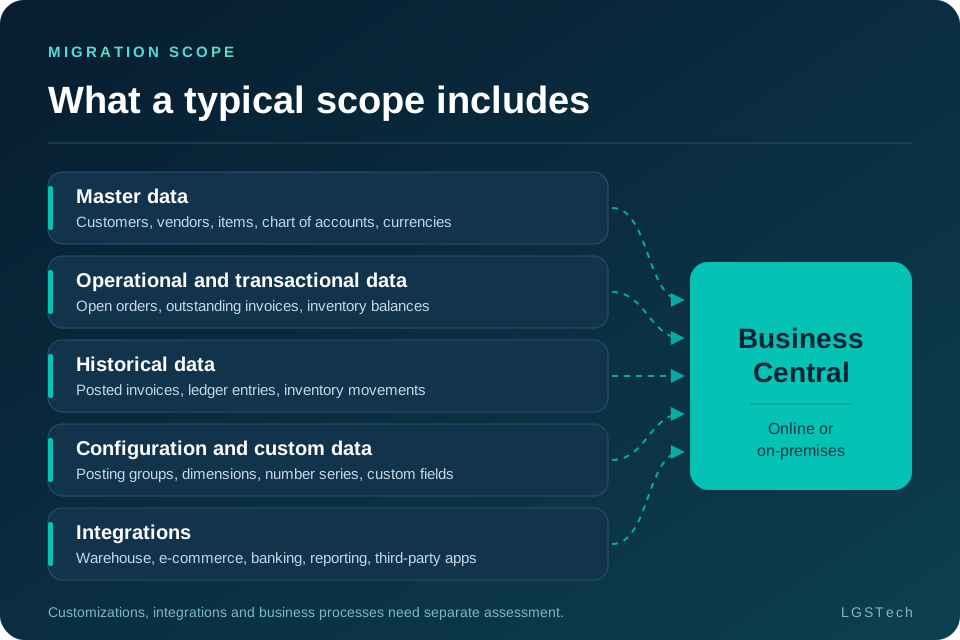
Data migration does not automatically modernize an ERP application. Customizations, integrations, and business processes need separate assessment and planning. Before the scope is approved, confirm which records are needed for daily operations, which must remain accessible for reporting or audit, and which can be retired under the organization’s retention rules.
2. How Should You Choose a Business Central Migration Strategy?
Three approaches are commonly used. The best choice depends on business requirements, historical reporting needs, audit obligations, data quality, and the cost of keeping legacy data accessible.
- Full migration: Move the agreed operational and historical data. This can simplify access to history inside the new ERP, but often requires more cleansing, mapping, and validation.
- Selective migration: Move data required for ongoing operations and keep older records in an accessible archive or legacy reporting environment.
- Hybrid migration: Move current operational data and selected history, while retaining other records outside the live ERP.
Do not assume that moving every available record is the safest option. A business-led data strategy should align the target data set with future-state processes and reporting needs. Gartner’s research on business-focused ERP migration highlights the need to prepare data around future business requirements, rather than treating migration as a technical copy exercise. Read Gartner’s migration-preparation research
3. What Changes When Migrating Dynamics NAV to Business Central Online?
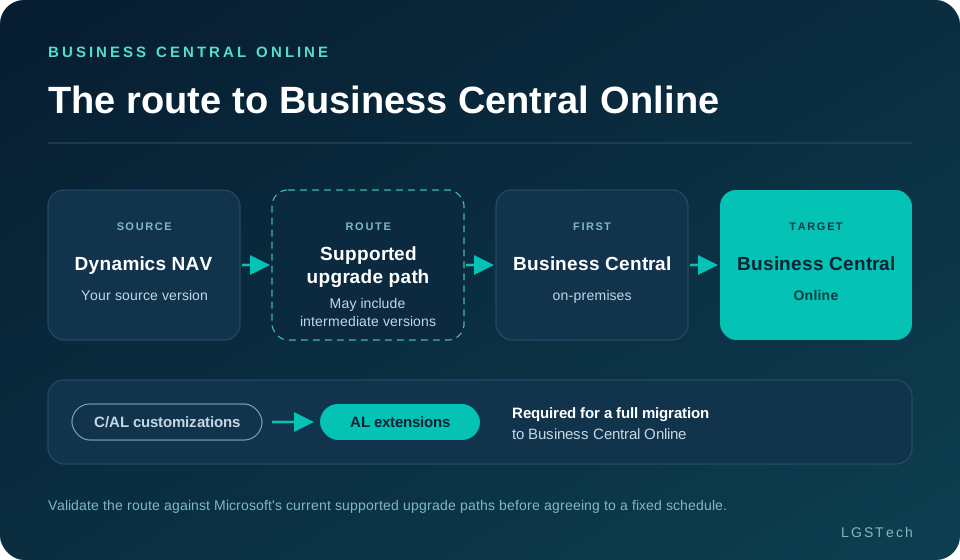
The target deployment model must be confirmed early. Microsoft’s current guidance says Dynamics NAV customers need to follow a supported upgrade route to Business Central on-premises before moving to Business Central Online. The exact route depends on the source version and may include intermediate versions. Validate the route against Microsoft’s current supported upgrade paths and NAV-to-Online migration guidance before agreeing to a fixed schedule.
Customizations need particular attention:
- C/AL to AL conversion: For a full migration to Business Central Online, C/AL customizations must be converted to AL extensions. The conversion and testing effort depends on the objects involved and how deeply they modify standard behavior.
- Custom tables and fields: Review data-bearing customizations and schema changes before migration. Removing or renaming fields without a planned data treatment can cause synchronization problems or data loss.
- .NET add-ins and legacy components: Components that depend on unavailable online capabilities may need to be replaced or redesigned.
- Reimplementation alternative: In some scenarios, a reimplementation path can move essential business data without converting the full customization estate. Compare the supported options carefully; the amount of functionality recreated will affect scope and business readiness.
Use Microsoft’s Customization Migration Guide to organize the assessment, conversion, and testing work. Migration decisions should be version-specific; avoid assuming that a path that worked for one NAV environment will apply to another.
4. How Long Does NAV to Business Central Migration Take?
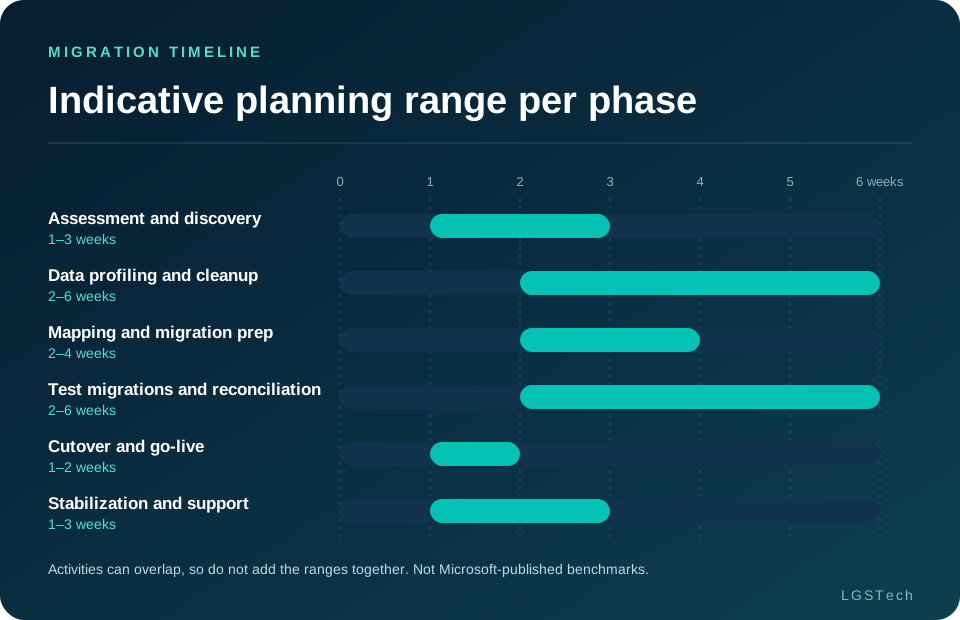
There is no single migration timeline that applies to every organization. The estimate depends on source version, data volume and condition, customization complexity, integrations, scope, and the availability of business users to make decisions and validate results. The ranges below are indicative planning estimates for individual phases, not Microsoft-published benchmarks.
| Phase | Planning range | Purpose |
|---|---|---|
| Assessment and discovery | 1–3 weeks | Confirm source version, systems, scope, dependencies, and upgrade route. |
| Data profiling and cleanup | 2–6 weeks | Identify duplicates, missing values, inconsistent records, and data owners. |
| Mapping and migration preparation | 2–4 weeks | Define source-to-target mapping, transformations, rules, and exceptions. |
| Test migrations and reconciliation | 2–6 weeks | Repeat trial loads, compare results, and validate finance and operations. |
| Cutover and go-live | 1–2 weeks | Coordinate final loads, downtime, approvals, and transition activities. |
| Stabilization and support | 1–3 weeks | Resolve post-go-live issues and monitor critical processes. |
Activities can overlap, so do not add the ranges together mechanically to create a guaranteed end-to-end duration. Complex upgrades or extensive customization work can extend the schedule. One frequently underestimated source of delay is unresolved business decisions—for example, which customer record is authoritative, how much history to retain, or whether a customized process should be redesigned.
A realistic migration timeline should include decision ownership, user availability, testing cycles, training, cutover planning, and post-go-live support—not just the time required to move data. Gartner’s execution research also emphasizes preparation, testing, cutover, training, and support. Read Gartner’s ERP migration execution research
5. Six Dynamics NAV Migration Risks to Address Before You Start
- Poor data quality. Duplicate customers, inconsistent item records, and incomplete fields can carry existing problems into Business Central. Define cleansing rules, assign data owners, and track exceptions before the first test migration.
- Rebuilding every customization. Some customizations may be essential; others may be outdated workarounds. Classify each as retain, redesign, replace with standard functionality, or retire, and obtain business-owner approval before development begins.
- Moving too much or too little history. Moving every record can increase effort, while excluding necessary history can disrupt reporting and audits. Agree on retention requirements, archive access, and operational needs before finalizing scope.
- Incomplete reconciliation. A successful data load does not prove accuracy. Define checks for general ledger balances, receivables, payables, inventory quantities and values, transaction counts, and key record relationships.
- Integration failures. Legacy interfaces may rely on NAV-specific fields, code, or formats. Inventory dependencies early and test end-to-end business flows—not just whether each connection responds.
- Scope creep and unclear ownership. Late requests and delayed decisions can affect budget and delivery. Maintain a decision log, assign accountable owners, and assess each change’s impact on scope, testing, and go-live.
6. A Six-Step Dynamics NAV to Business Central Migration Framework
- Assess the current environment. Document the NAV version, database, customizations, integrations, data volumes, and critical processes. Confirm the supported upgrade path and target deployment model.
- Define the data scope. Decide which data to migrate, archive, or retire. Record the business reason and owner for each decision.
- Prepare and cleanse the data. Profile completeness, duplicates, and inconsistencies. Set cleansing rules and assign owners to resolve exceptions.
- Review customizations and integrations. Decide what to retain, redesign, replace, or retire. Plan extension conversion and changes to integration points.
- Test and reconcile. Run trial migrations, compare source and target results, validate financial and operational data, and have business users test critical workflows.
- Confirm cutover readiness. Agree on responsibilities, downtime expectations, recovery arrangements, acceptance criteria, communications, and post-go-live support.
A practical rule is to test assumptions before they become costly changes. For example, before committing to moving every historical ledger entry, finance should confirm which records are needed for day-to-day operations, reporting, and audit—and whether an archive can satisfy the remaining needs. Likewise, a long-standing customization may no longer be needed if standard Business Central functionality supports the process. These are illustrative scenarios, not claims about a specific customer project.
7. Pre-Migration Checklist
Before approving the project plan, confirm that:
- The source NAV version and target upgrade path have been checked against current Microsoft guidance.
- The target deployment model—Business Central Online or on-premises—is confirmed.
- Customizations, add-ons, custom tables and fields, and integrations are inventoried.
- Business owners have approved the migration scope and historical-data retention plan.
- Data-cleansing rules and exception owners are defined.
- Source-to-target mapping, transformation rules, and reconciliation checks are documented.
- Critical workflows, reports, integrations, and acceptance criteria are agreed upon.
- Cutover, downtime, recovery, communication, and support responsibilities are assigned.
Unresolved items should be reflected in the project estimate rather than treated as minor details to address later.
8. How to Measure Business Central Migration Success
- Data integrity: Reconcile agreed financial balances, open receivables and payables, inventory quantities and values, transaction totals, and key record relationships. Document exceptions and obtain approval for accepted discrepancies.
- Operational readiness: Confirm critical workflows and integrations pass agreed tests, high-priority defects are resolved or formally accepted, and business owners sign off on results.
- Business value: Establish a baseline for reporting effort, manual workarounds, data-discrepancy resolution, and legacy customization maintenance. Compare actual outcomes after migration instead of assuming benefits.
Forrester’s research on SaaS ERP business value provides broader context for assessing outcomes beyond deployment. Any expected benefits should still be measured against the organization’s own baseline, costs, and operating model. Read Forrester’s SaaS ERP business-value report
9. How to Choose a Dynamics NAV Migration Partner
Look for a partner that can demonstrate a repeatable, evidence-based migration method. Ask whether the team can:
- Assess NAV versions, data structures, customizations, integrations, and supported upgrade paths.
- Define a defensible migration scope and historical-data strategy.
- Document transformation rules, exception handling, and reconciliation criteria.
- Plan C/AL customization conversion where required and test integrations end to end.
- Run repeatable test migrations and involve finance, operations, and other business users in validation.
- Set clear cutover responsibilities, recovery plans, acceptance criteria, and post-go-live support.
Request a sample migration plan, risk register, and reconciliation approach. Check whether customer case studies reflect comparable environments and whether any performance claims are supported by verifiable measures.
Frequently Asked Questions
How long does it take to migrate from Dynamics NAV to Business Central?
There is no standard duration. Assessment, data cleansing, mapping, test migrations, cutover, and stabilization can each take weeks, and some activities overlap. The source NAV version, customizations, integrations, data quality, scope, and availability of business users are major factors in the estimate.
Can Dynamics NAV migrate directly to Business Central Online?
Do not assume a direct route. Microsoft’s current guidance describes a supported upgrade path from Dynamics NAV to Business Central on-premises before migration to Business Central Online. The required intermediate versions and prerequisites depend on the source environment. Check Microsoft’s current migration and upgrade documentation before planning.
What data should be migrated to Business Central?
At minimum, assess master data, open operational transactions, required balances, configuration, custom data, integrations, and historical records needed for reporting, audit, or compliance. The final scope should be based on business needs and record-retention obligations rather than automatically copying every legacy record.
Do Dynamics NAV customizations need to be rewritten for Business Central Online?
For a full migration to Business Central Online, C/AL customizations must be converted to AL extensions. A reimplementation strategy may reduce the amount of legacy customization conversion by moving essential business data and recreating processes selectively. Confirm the supported option for your source version and requirements.
What are the main risks in a NAV to Business Central migration?
Common risks include poor data quality, unclear historical-data scope, unnecessary customization rebuilds, incomplete reconciliation, integration failures, and scope changes caused by unclear decision ownership. Early assessment and repeatable testing help teams identify these risks before go-live.
How can a business validate migrated data?
Define source-to-target reconciliation rules before testing. Compare agreed financial balances, receivables, payables, inventory quantities and values, record counts, and key relationships. Then test critical workflows and integrations with business users, document exceptions, and obtain formal acceptance.
Conclusion
The success of Dynamics NAV to Business Central data migration depends on more than transferring records. It requires decisions that protect business continuity, reduce unnecessary complexity, and make the results verifiable.
Agree on historical-data requirements, review customizations before rebuilding them, assign ownership for data quality, validate the supported upgrade route, and define measurable go-live criteria. These steps help teams identify risk earlier and make project estimates more realistic.
LGSTech helps organizations plan and execute ERP data migration through assessment, data preparation, transformation, validation, and cutover. Talk to a data migration expert to discuss your source environment, migration scope, and delivery risks.